Receipt Rule Config
Path
Dashboard -> Multi-Domain Pay-Group -> Domain Manage -> Receipt Rule Config
What are receipt rules?
Receipt means a rule where one mailbox receives emails for another mailbox.
After receipt is enabled, emails sent to all prefixed sub-email addresses under the current domain will be received by the receipt mailbox. You do not need to create them one by one. This is equivalent to having unlimited sub-email accounts, with mailbox prefixes defined by you.
What is admin-email receipt?
First, look at the definitions of two mailbox types:
- A mailbox contains two parts: the mailbox prefix and the domain name. For example, in [email protected], dev is the mailbox prefix and mail.com is the domain name.
- GetMX divides mailboxes into two types: admin emails, also called administrator emails, and sub-emails. For example, [email protected] is a sub-email, and [email protected] is an admin email.
Admin-email receipt means receiving all sub-email messages in the admin email. After admin-email receipt is enabled in the GetMX admin panel, even if a sub-email has not been manually created in the GetMX admin panel, its messages can still be received in the admin email. If the sub-email has been manually added, one copy of the email will be stored in both the admin email and the sub-email. This means you do not need to manually add sub-emails one by one. When using an email address, you can enter any mailbox prefix, and you will be able to find the sub-email messages in the admin email, thereby creating unlimited mailboxes.
Sub-emails created through receipt cannot log in separately and can be viewed in admin email management. To log in separately, they must be manually added one by one.
Sub-emails are not created, but they are not virtual either. In “Receipt Config — Receipt Sub-Email List,” you can view all mailboxes that have been received through receipt.
How do I enable admin-email receipt?
Click the blue Catch all Sub-Email by Admin-Email button
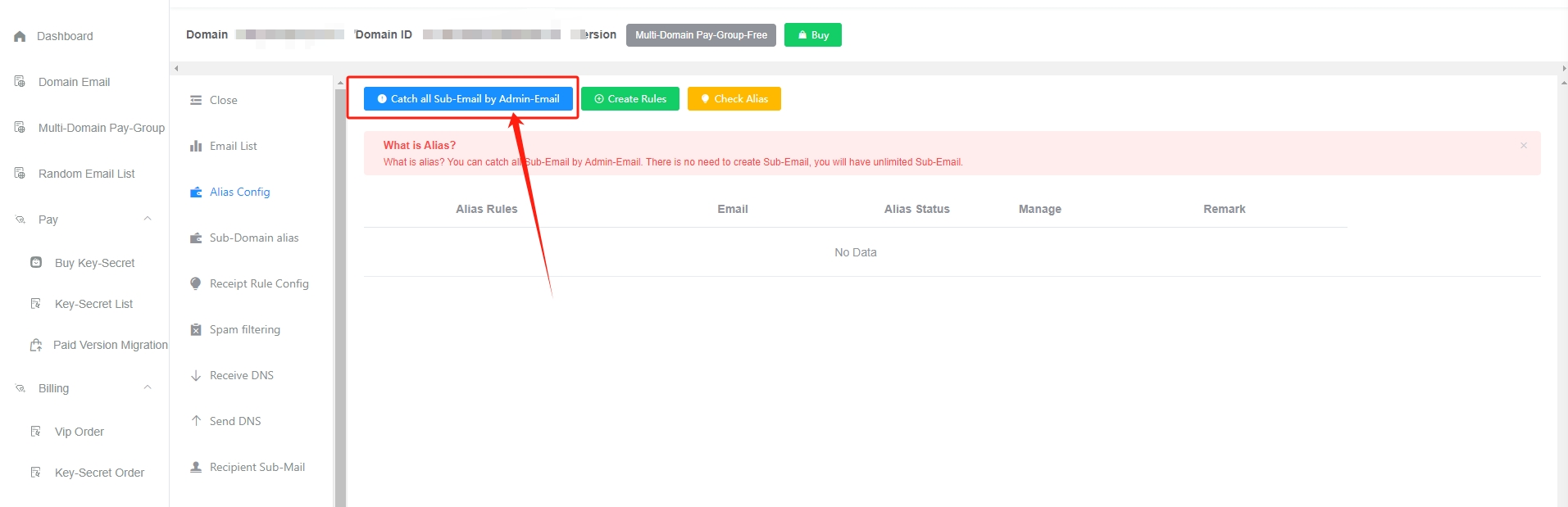
How to customize receipt rules
Click the green Create Rules button
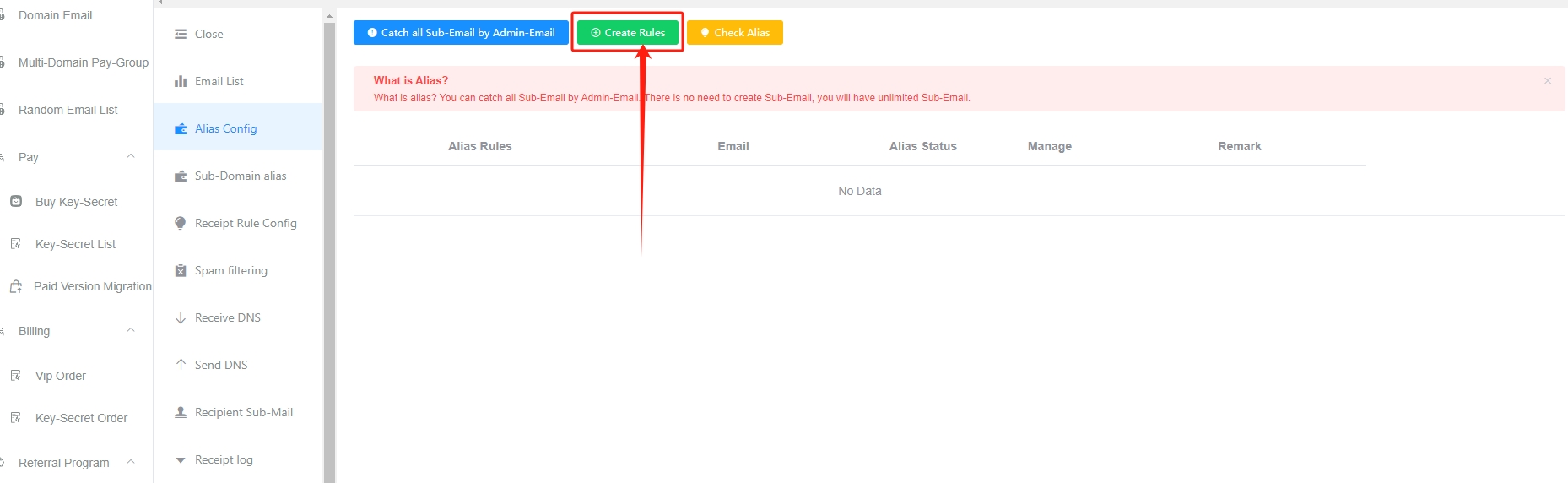
View receipt rules
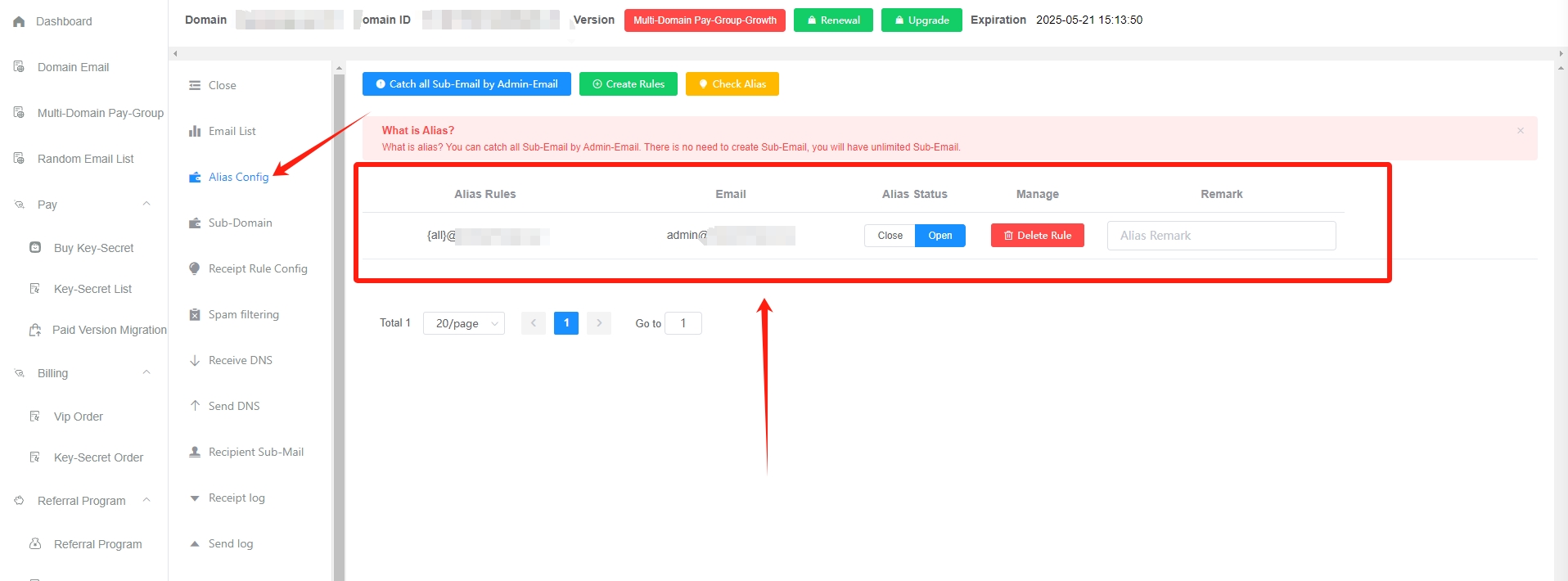
Receipt rule conventions
Custom characters
{all}- Matches all values, such as: test, dev123, 138881909liu, 123456
{number}- Matches numbers, such as: 2021, 13888888888, 1, 666
{letter}- Matches letters, such as: dev, test
Example
For example: set sub_{number}@mail.com to be received by [email protected]. Then countless mailboxes that meet this rule, such as [email protected], [email protected], and [email protected], will all be received by the [email protected] mailbox.
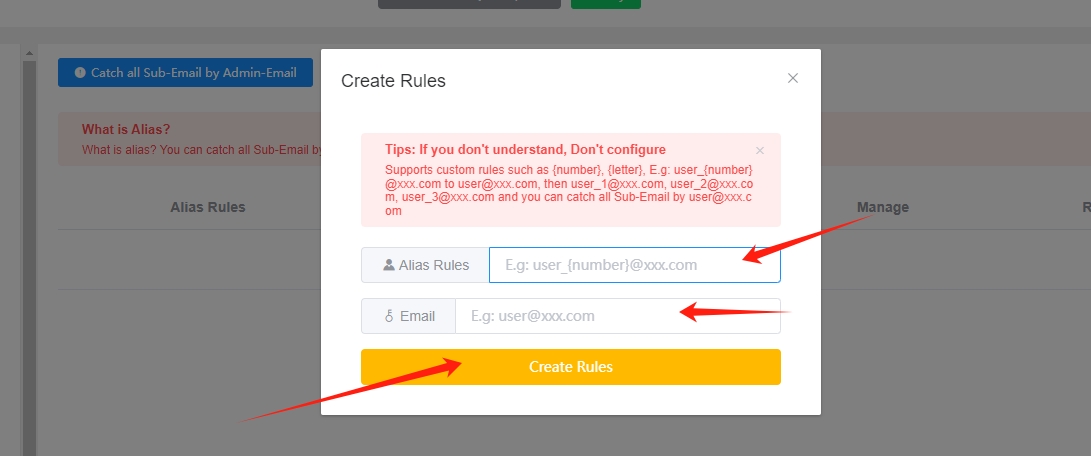
- Matches letters, such as: dev, test
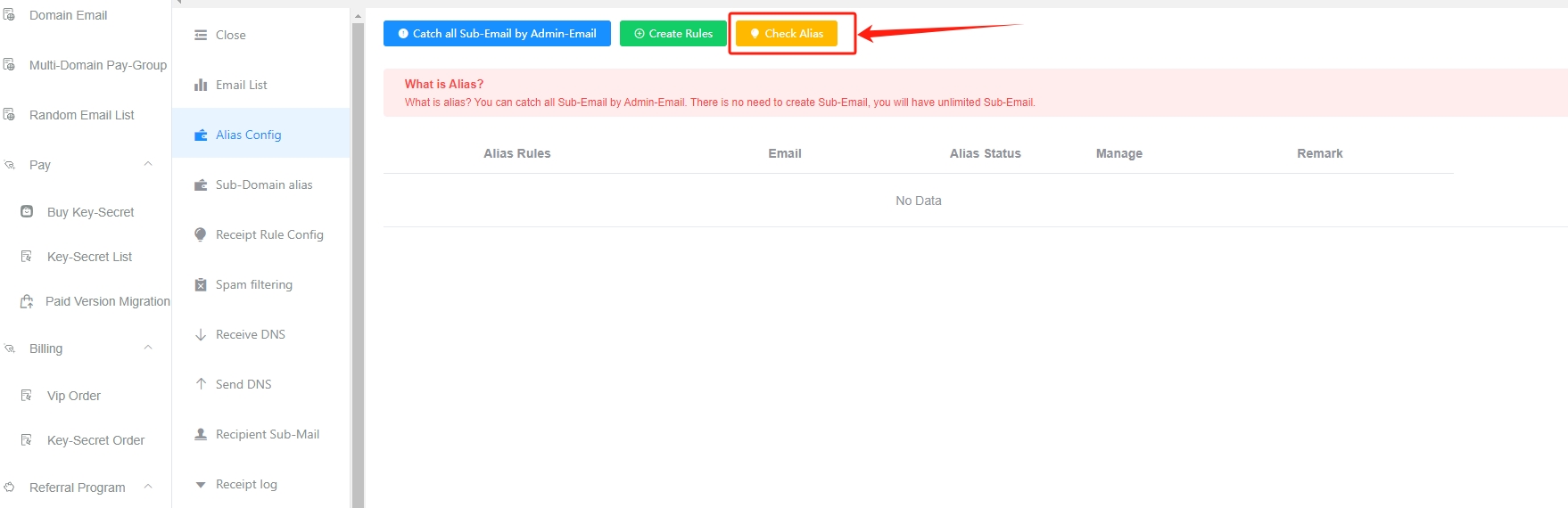
Check receipt
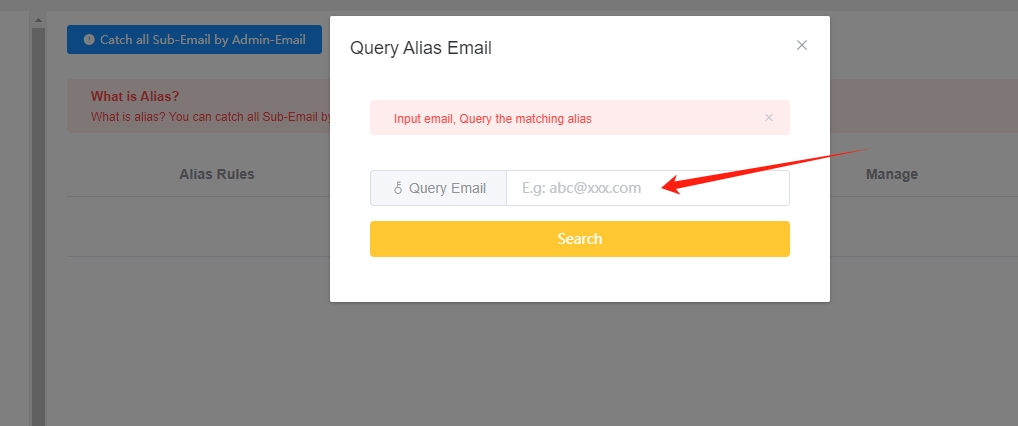
Click the yellow Check Alias button
Enter the receiving mailbox to query the matched rule and the mailbox that will receive it. For example, if you query [email protected], you will find that [email protected] will be received by [email protected].
Notes
- The receipt feature is currently only supported in paid plans.
- Multi-Domain Pay-Group supports cross-domain receipt, but only for domains under the same pay-group.
- When using
{all}, it will match everything, so you cannot add{number}or{letter}. {letter}or{number}should preferably be used only once in a rule to avoid confusion and make it easier to manage.