Receive DNS
Access Path
Domain Email -> Email Manage -> Receive DNS
Automatic DNS Configuration
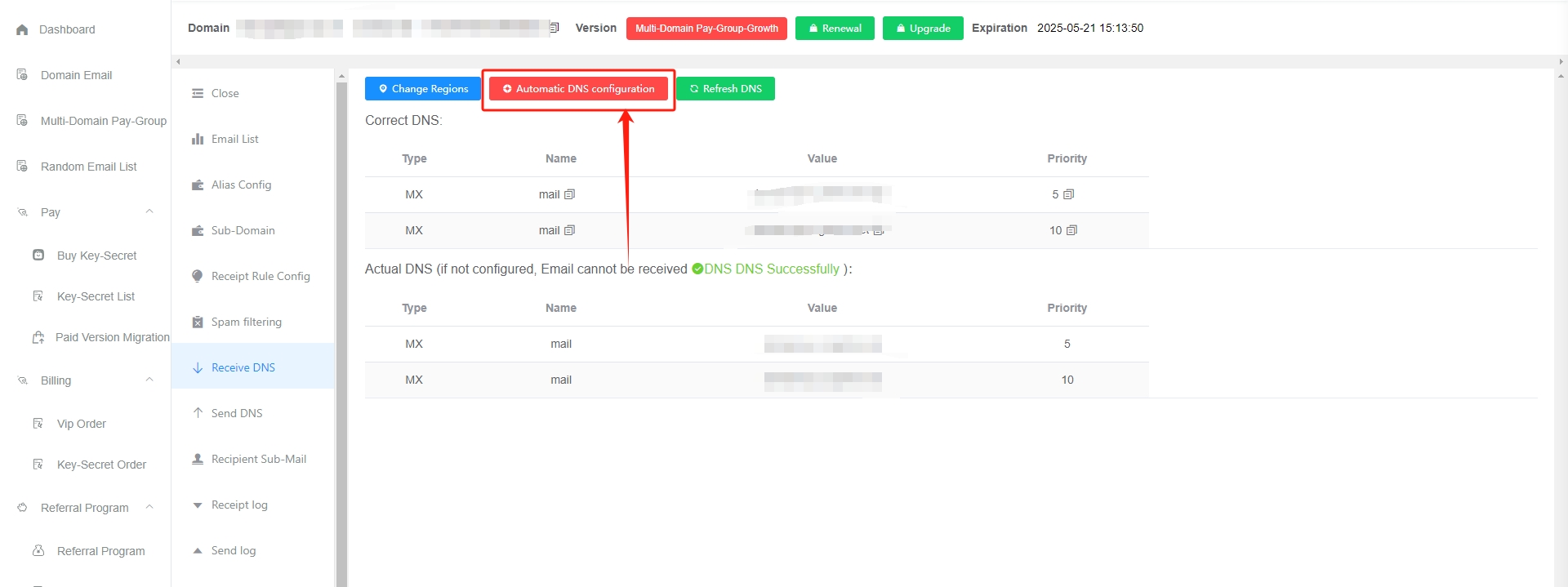
- Click the red
Automatic DNS configurationbutton
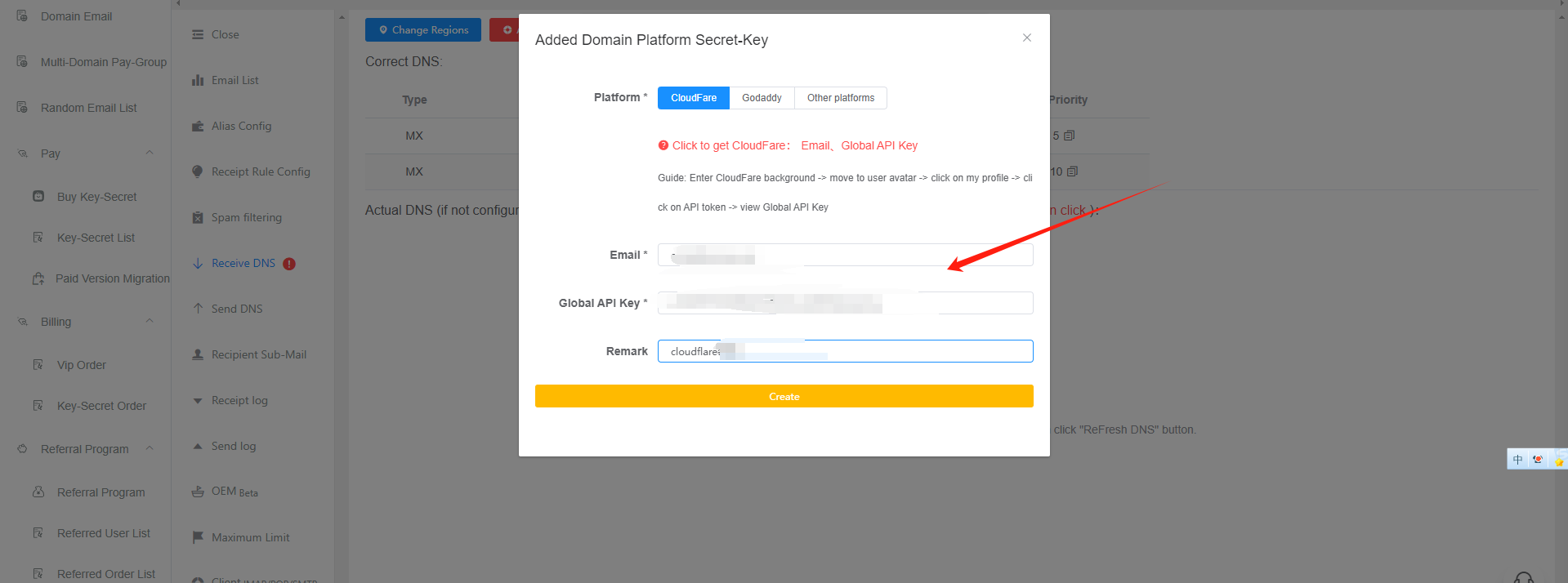
- Go to your domain platform to obtain the required secret key information, and fill it in for GetMX email. (Currently supported domain platforms: CloudFare, Godaddy)
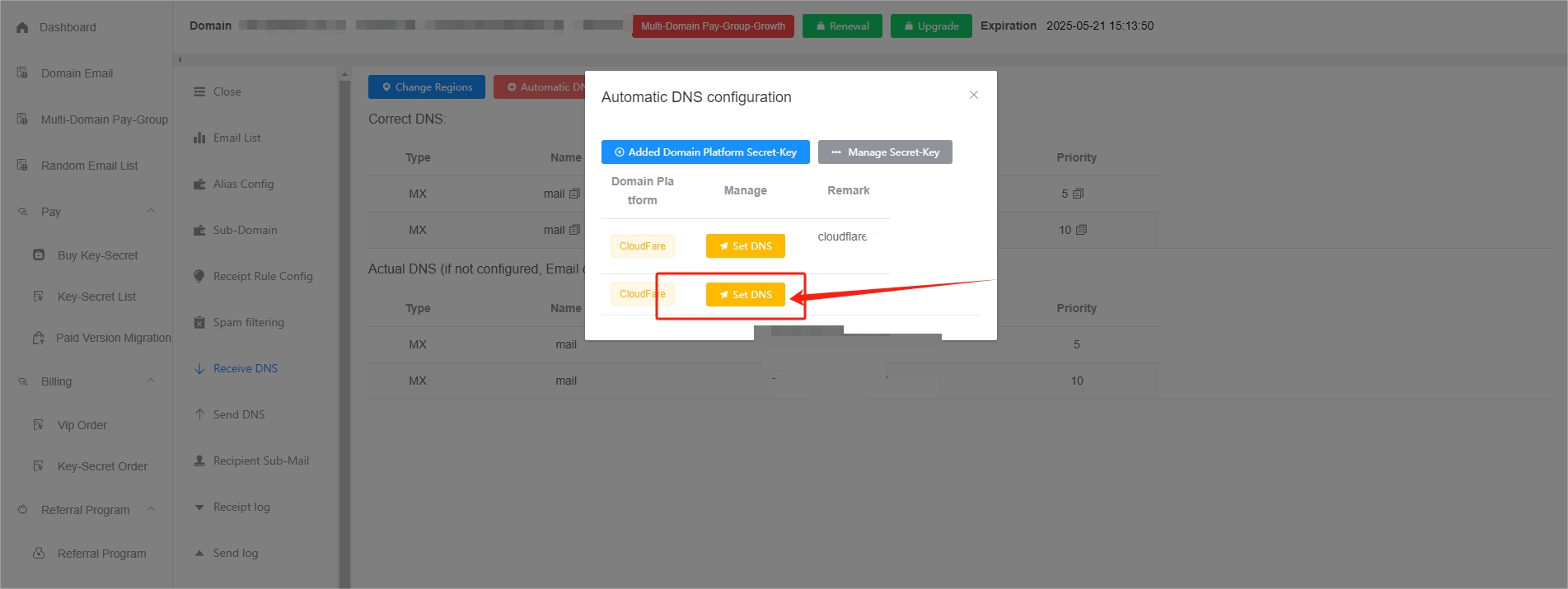
- Click the yellow
Set DNSbutton
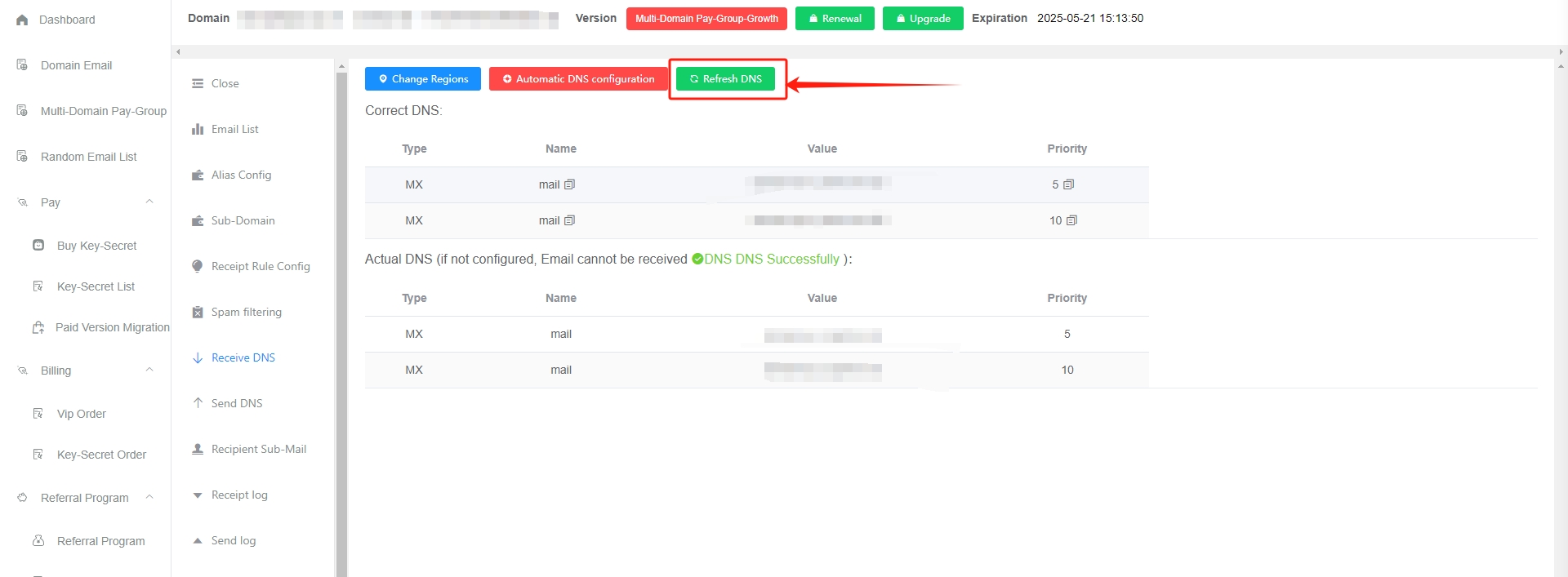
- Click the green
Refresh DNSbutton
Manual DNS Configuration
The video below uses godaddy as an example. Other platforms are similar. We strongly recommend using the automatic DNS configuration method above ⬆️ ⬆️ ⬆️
Receiving Regions
Supported Receiving Regions
- North America - Silicon Valley
- Southeast Asia - Singapore
- Asia Pacific - Tokyo
- Asia Pacific - Australia
- Europe - London
- Europe - Moscow
- Middle East - Bahrain
- Africa - Cape Town
Choose Receiving Regions
- Overseas networks are complex. Choosing the receiving server closest to your business helps receive emails faster and more reliably.
- You can select up to 3 regions. The higher a selected region is listed, the higher its priority. It is best to select 2 to 3 regions.
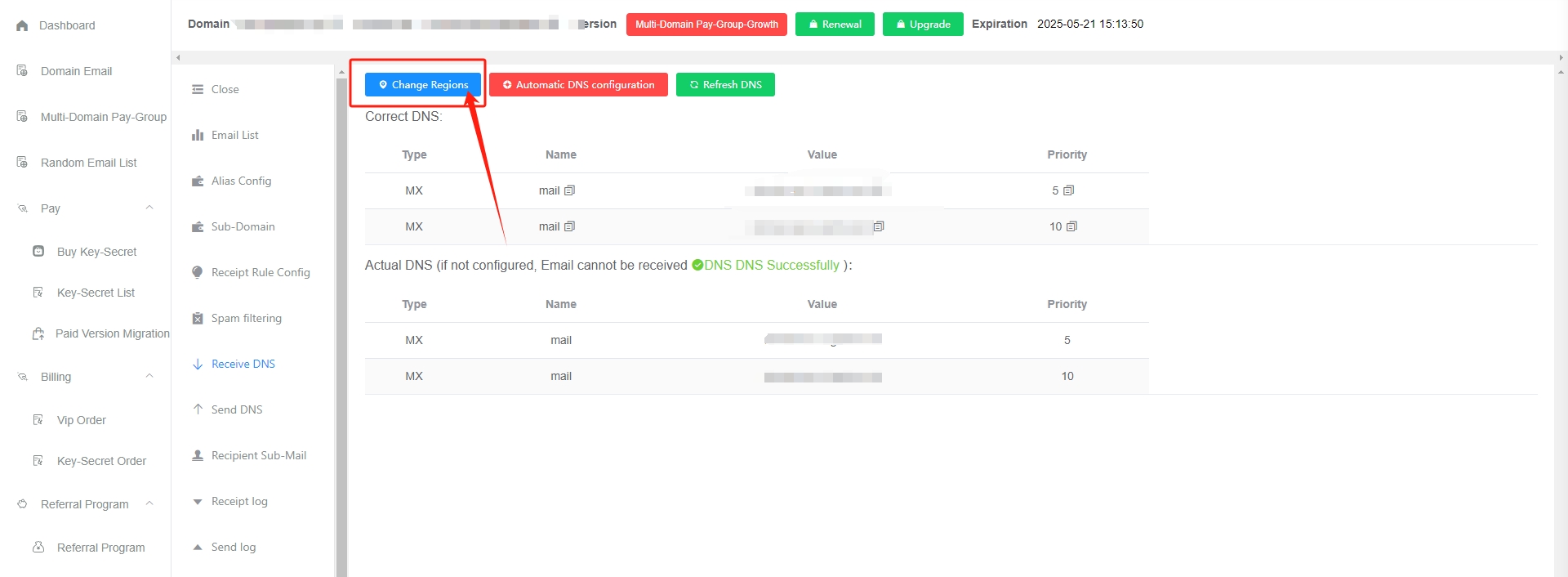
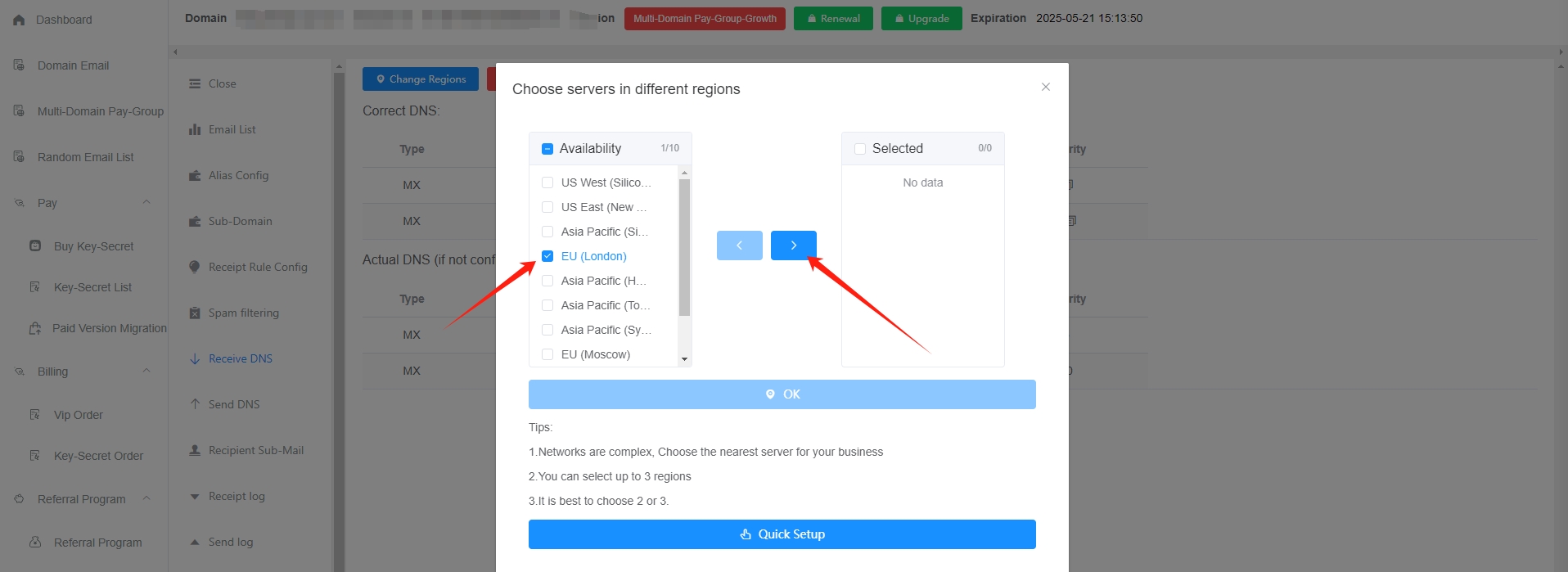
How to accurately choose receiving regions for faster email receiving
- You can first roughly choose domestic or overseas based on your business scenario
- Then, during business use, send a test email
- After receiving the email, check the sender's receiving IP in the receiving logs, then choose the region closest to the sender's address. (For example, for Southeast Asia, you can choose the Singapore server; for Europe and the Americas, you can choose the US server.) Click to view: How to choose a region based on the sending IP
Important Notes
- Receive DNS must be configured and show as correct before emails can be received normally
- After the configuration succeeds, click the green
Refresh DNSbutton to check whether it has taken effect - Domain DNS records are cached and do not take effect in real time. They usually take effect within half an hour, and .com domains are relatively faster. If it keeps showing that DNS resolution failed, please contact customer support for troubleshooting
- The DNS record address displays the DNS region. Be careful not to copy the region together with it. You can click the copy button to ensure that only the DNS record address is copied
- In the domain DNS management console, if DNS region selection is supported (such as godaddy), be sure to choose the default option and do not specify a country. Specifying a country means the DNS record only takes effect in that region, which may prevent emails from being received
FAQ
What if my domain platform cannot enter a priority?
You can use godaddy's DNS service for DNS configuration. If you do not know how to do this, please contact customer support for remote assistance:
- Register a godaddy account and add the domain in the godaddy domain management console
- Return to the original DNS platform and change the domain's NS records to the DNS servers displayed by godaddy. Then you can add DNS records in godaddy
godaddy's DNS service is free. The domain does not need to be transferred to godaddy; you only need to use godaddy's DNS service
Why did Scale's Receive DNS change?
Reasons for the Change
- Newly activated Scale
- When a Scale server is newly activated, it changes from a regular server to a dedicated server, so the Receive DNS address changes
- Renewal was interrupted
- After renewal is interrupted, the server will be reassigned, and the Receive DNS records will change. If they change, you need to add the current DNS records again on the domain purchase platform. (If renewal is not interrupted, the Receive DNS records will not change, so you need to renew before the paid period expires.)
- The domain was previously unbound from “Multi-Domain Pay-Group`”
- After a domain is unbound from “Multi-Domain Pay-Group,” it becomes Free. After it becomes Free, the Receive DNS records will change. Even if it is unbound and then added back to the “Multi-Domain Pay-Group,” it will no longer be on the same receiving server as before, so the Receive DNS records will change. (By the same principle, if a domain was previously unbound from
Multi-Domain Pay-Group, it went through Free once during the change, the collection feature will be turned off, and you need to re-enable the collection feature after binding it to the paid group again.)
- After a domain is unbound from “Multi-Domain Pay-Group,” it becomes Free. After it becomes Free, the Receive DNS records will change. Even if it is unbound and then added back to the “Multi-Domain Pay-Group,” it will no longer be on the same receiving server as before, so the Receive DNS records will change. (By the same principle, if a domain was previously unbound from
- The domain's paid version changed from “Single-Domain version” to “Multi-Domain version”
- When changing a single-domain version to a multi-domain version, the process first changes it to Free, then changes it to the Multi-Domain paid version. Because it goes through Free once before changing to the paid version, the Receive DNS records will change. (By the same principle, after changing from the Single-Domain version to the Multi-Domain version, the collection feature will be turned off and needs to be re-enabled.)
Solution
- We strongly recommend using automatic DNS configuration, which can automatically sync domain DNS records with one click Click to view: Automatic DNS configuration
The domain has already been resolved to another platform. Can it still be resolved to GetMX?
No
A root domain can only be resolved to one platform. Otherwise, neither platform will be able to receive emails normally
If it must be resolved to two platforms, you can resolve a subdomain to GetMX
What is a subdomain?
Root domain: mail.com, corresponding email address: [email protected]
Subdomain: sub.mail.com, corresponding email address: [email protected]