Mailbox Management
Navigation Path
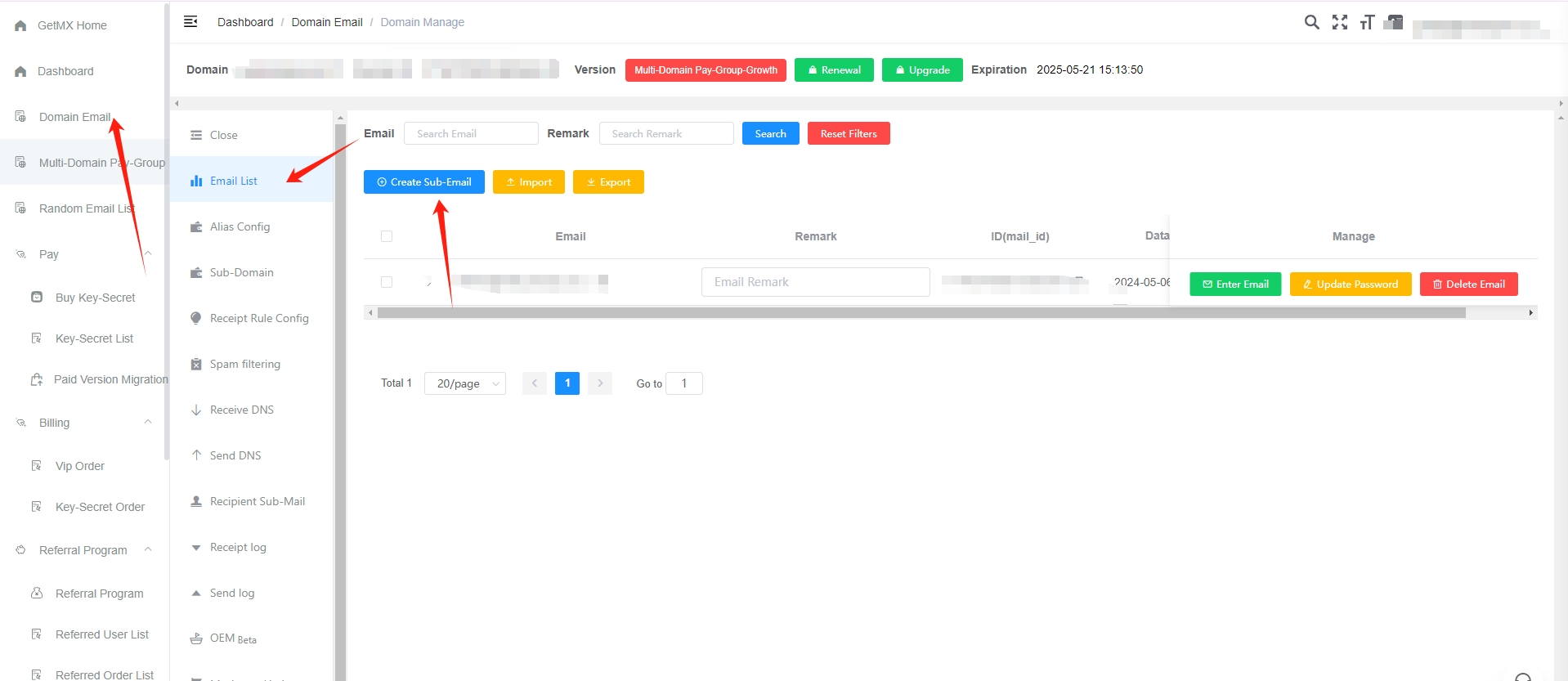
Dashboard -> Domain Email -> Email Manage
Feature Overview
The mailbox management page is the entry point for mailboxes. It includes features such as creating, importing and exporting, entering mailboxes, changing passwords, deleting mailboxes, and cleaning up mailboxes.
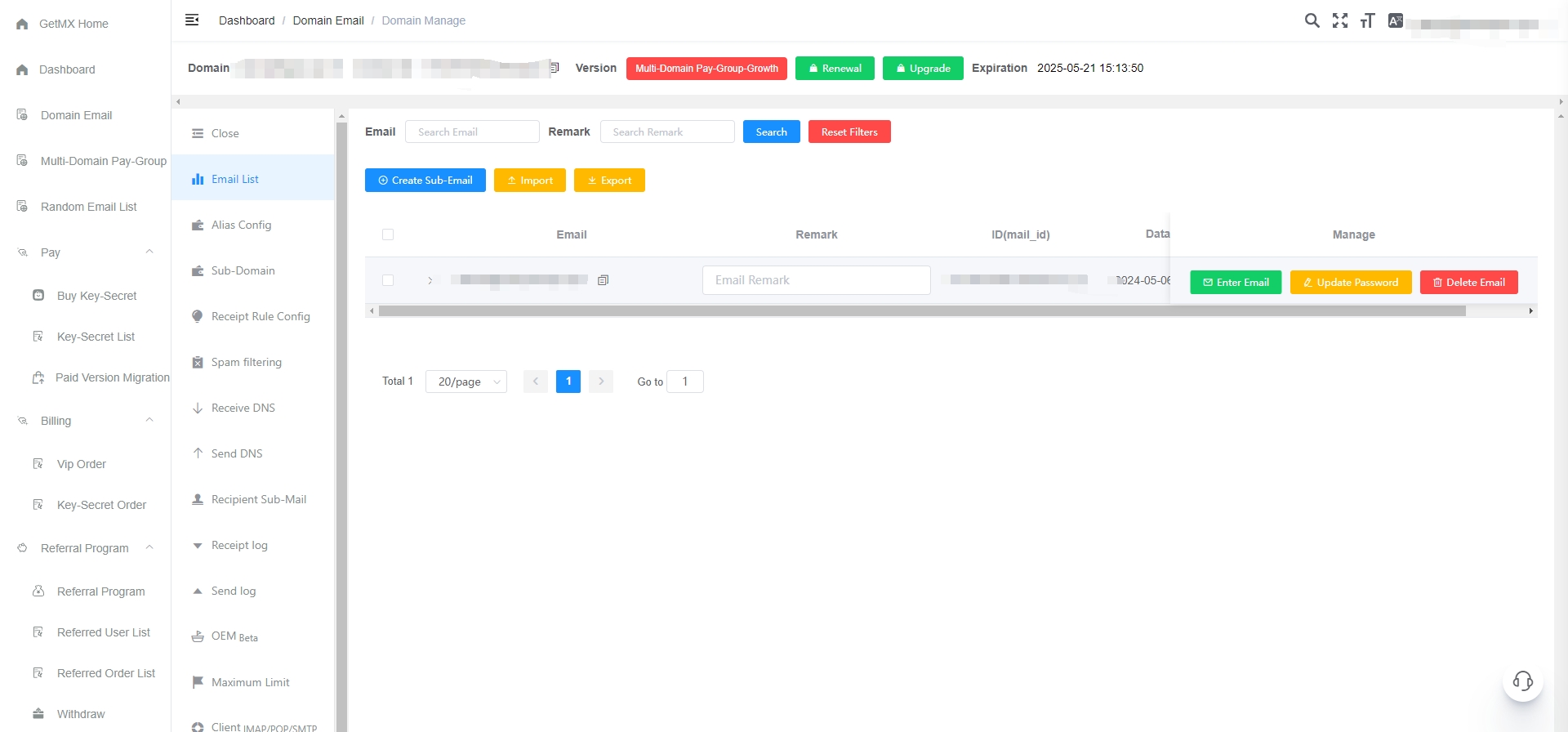
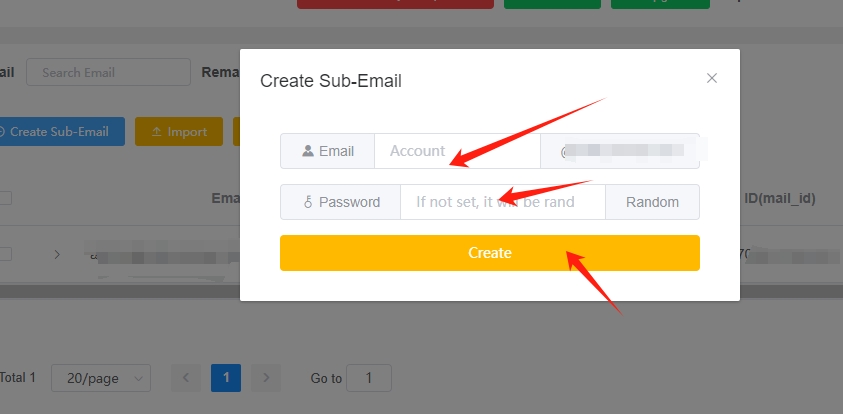
Create a Mailbox
Click the blue Create Sub-Email button
Import Mailboxes
Click the yellow Import button
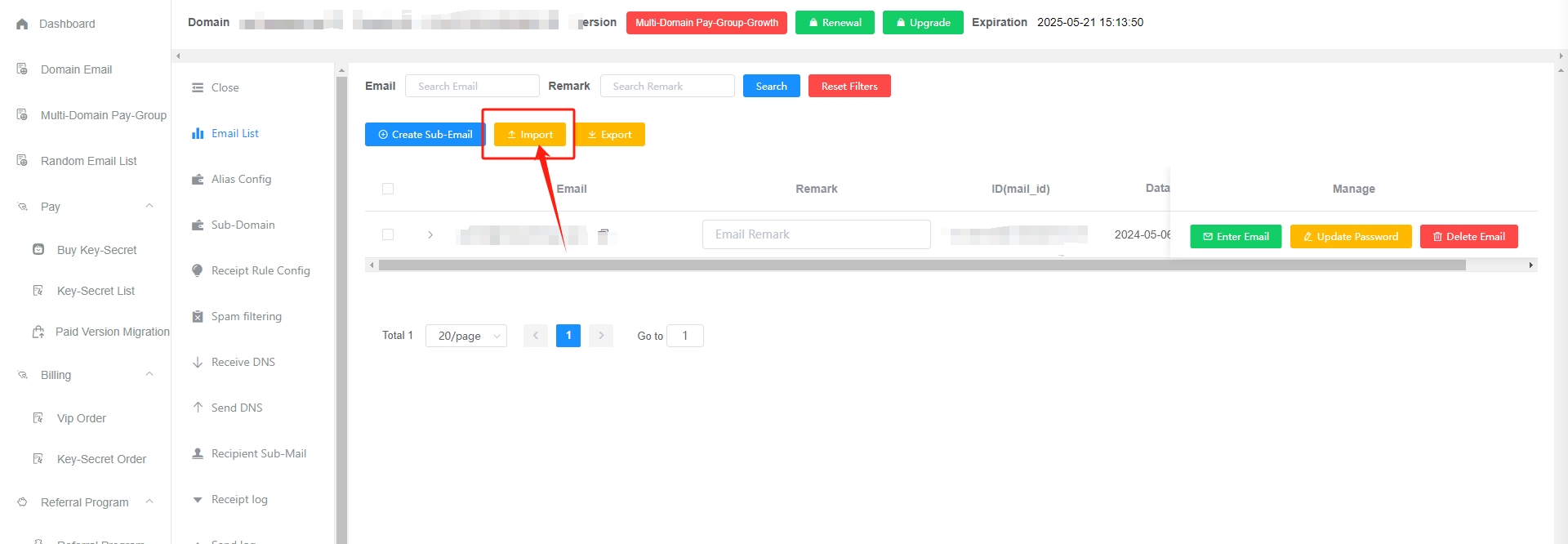
- Please download the import template first and strictly follow the template format: Click to download the import template
- xlsx file uploads are supported
- Each import supports no more than 5,000 records, and the file size must not exceed 1 MB
- The import process may take a long time. Please do not refresh or close your browser.
Export Mailboxes
Click the yellow Export button
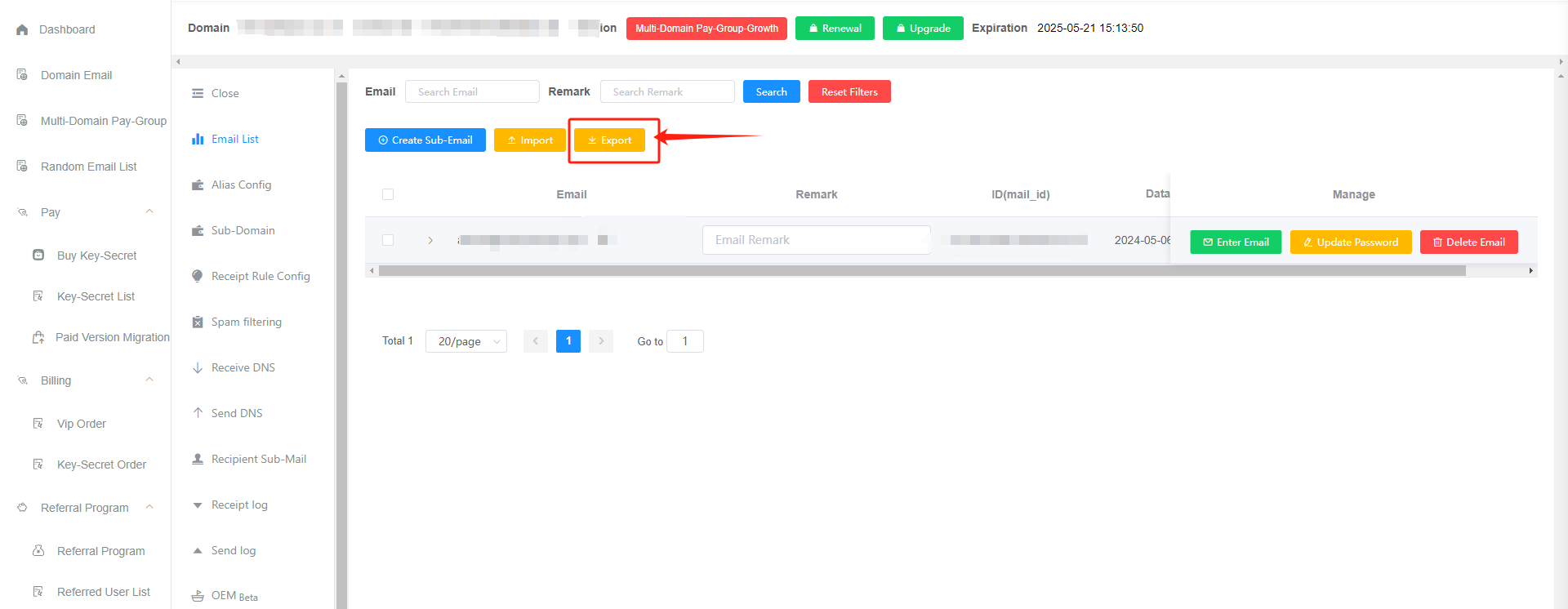
- The exported mailboxes are all mailboxes under the current filter criteria
- Export content: includes mailboxes and remarks
- Passwords are encrypted and cannot be viewed again or exported
- Exporting may take a long time. Please wait patiently.
- If the download pop-up does not appear, please check whether your browser has blocked it
Enter Mailbox
Enter Directly
Click the green Enter Email button. This is the quick way to enter a mailbox.
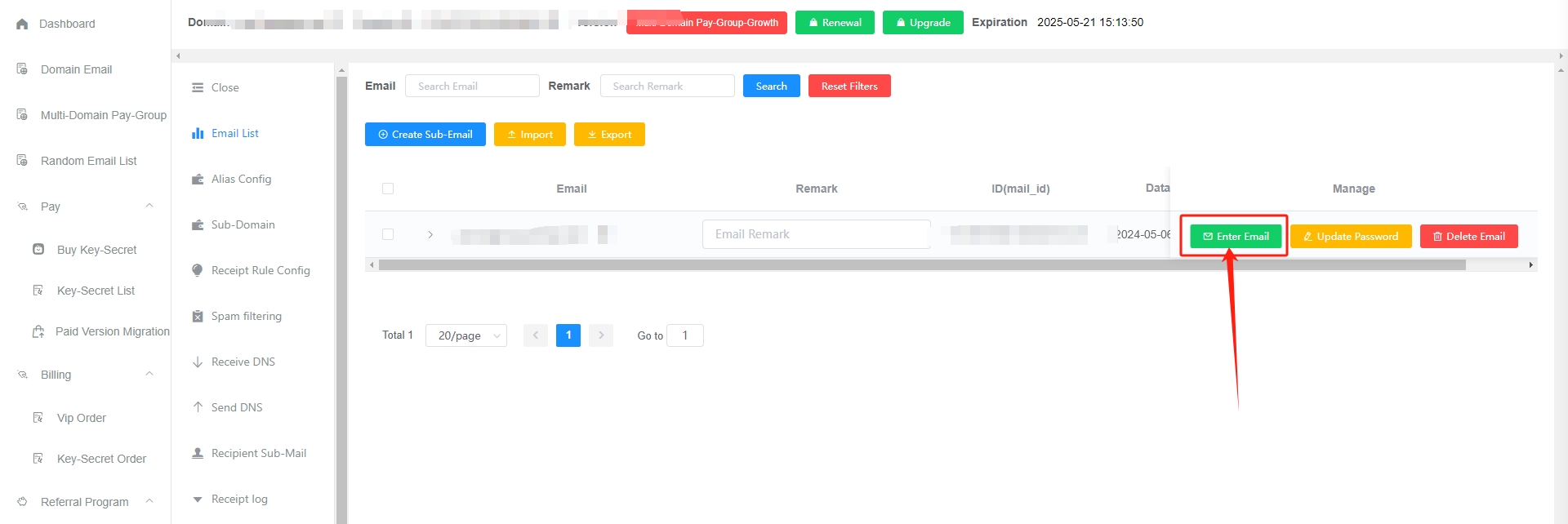
Manually
You can first change the password, then enter manually
Webmail client URL:
- If the login prompt shows
Authentication failed, the password is incorrect. Please click Change Password, then enter - Sub-email accounts must be created separately before they can log in
- To change the password in the web client, the administrator must enable password change permissions
Change Password
Click the yellow Update Password button
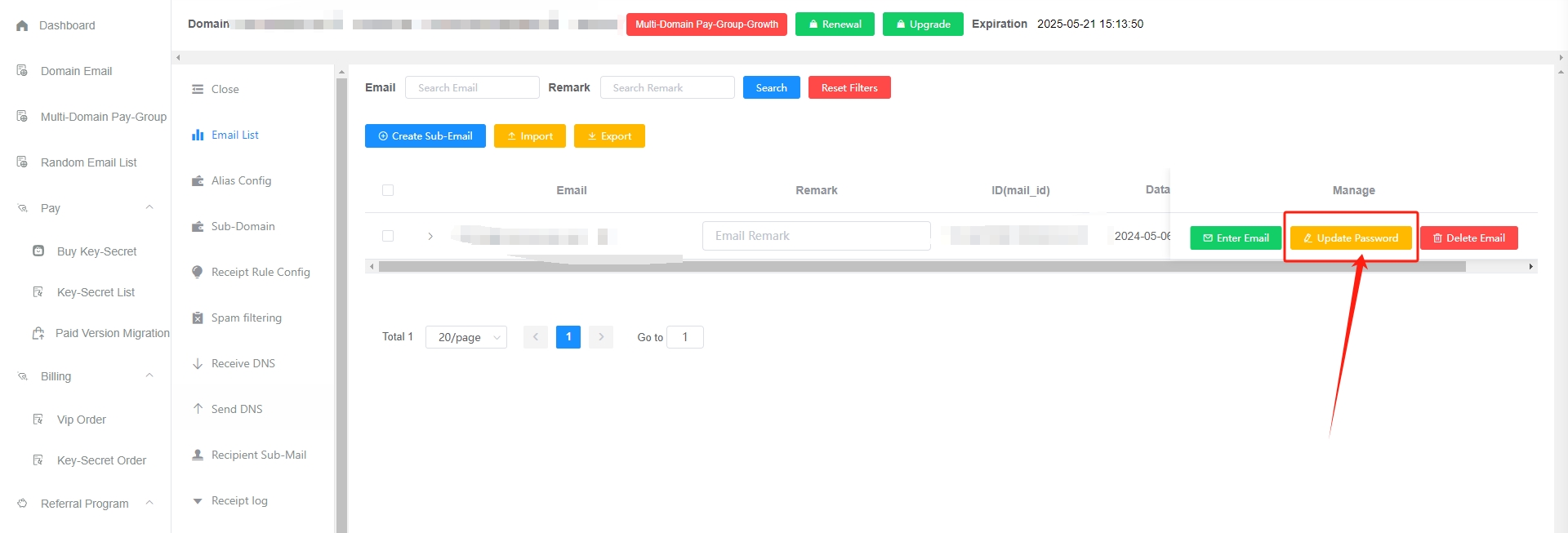
- Mailboxes do not have a password by default
- The mailbox password is not the same as your GetMX account password
- Mailbox passwords can only be changed and cannot be viewed
- If you previously used the catch-all feature, the sub-email account does not exist. You need to create the sub-email account first. You can set a password when creating it. Click to view: How to create a mailbox
Delete Mailbox
Click the red Delete Email button
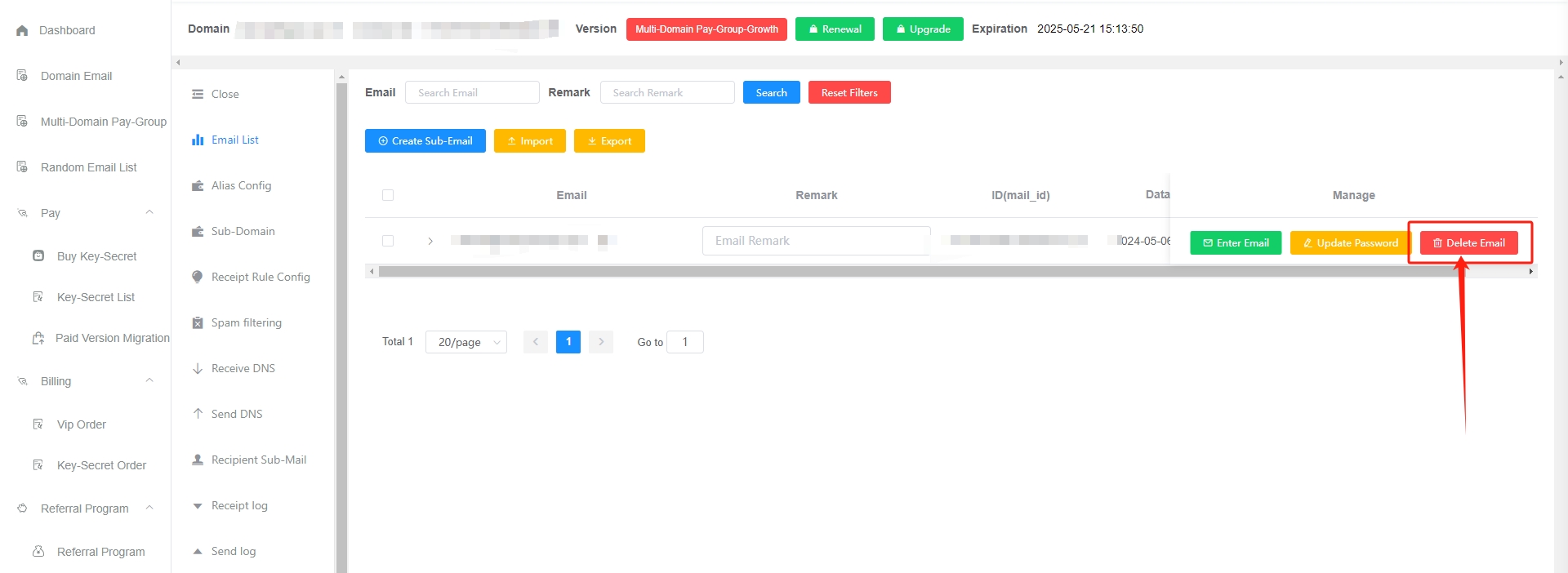
- After deleting a mailbox, the mailbox and all its contents will be deleted. Please proceed with caution.
- Deleted mailboxes are automatically archived for 1 year (the server will be powered off and disconnected from the network for backup). After 1 year, they will be permanently cleaned up. If you need recovery, please contact customer service for paid recovery at 50 per recovery. Recovery carries risks, so please delete with caution. If you have multiple sub-email accounts, please
contact customer servicefor a price estimate.
Clean Up Mailbox
Click the gray Clean Up Mailbox button
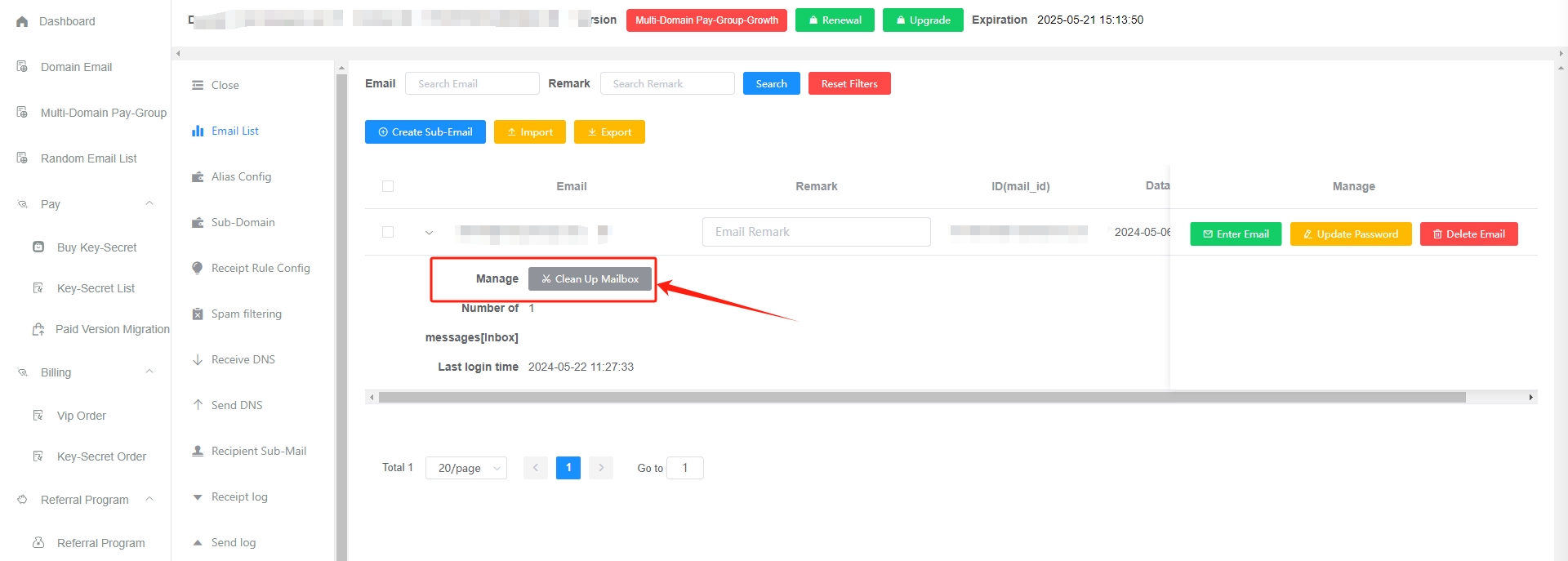
- Cleaning up a mailbox can instantly delete all emails in the mailbox and help reduce lag when opening the mailbox.
- Deleted mailbox data is automatically archived for 1 year (the server will be powered off and disconnected from the network for backup). After 1 year, it will be permanently cleaned up. If you need recovery, please contact customer service for paid recovery at 50 per recovery. Recovery carries risks, so please clean up with caution.
FAQ
How can I quickly create sub-email accounts?
The following methods are available. We recommend the first one because it is convenient, worry-free, and efficient:
- Enable main mailbox catch-all in the GetMX Domain Email admin backend (that is, the “one-click catch-all” feature). After catch-all is enabled, you effectively have unlimited sub-email accounts by default, without manually adding sub-email accounts one by one. Emails sent to all sub-email accounts can be collected by the main mailbox. For example, if the main mailbox is [email protected], replacing admin with any number or letter creates a sub-email account under it (for example, [email protected] is a sub-email account under it). You only need to think of any sub-email prefix when using it (such as dev), without manually creating the sub-email account in the GetMX backend. Click to view: How to configure main mailbox catch-all
- Manually create it in the GetMX backend. You can define the mailbox and password. This is simple and straightforward, but less efficient. Click to view: How to manually create a sub-email account
- GetMX provides a mailbox import feature. Before importing, you can download the Excel import template and import according to the template requirements. Click to view: How to import mailboxes via Excel
- Growth provides API endpoints, allowing you to create sub-email accounts via API on your own. This is suitable for users with technical capabilities. Click to view: Open Platform API documentation
How can mailbox permissions be managed?
There are two methods
- Create sub-email accounts directly for employees and set passwords. Employees can log in through https://mail-client.getmx.com
- Set separate catch-all rules for each employee. Each employee manages their own main mailbox, and each employee can have unlimited mailboxes. You can use the check button to determine where emails will be caught and delivered.
- tiktok_
{number}@mail.com is caught and delivered to [email protected] - weixin_
{number}@mail.com is caught and delivered to [email protected] - sub_
{number}@mail.com is caught and delivered to [email protected]
- tiktok_
- Add backend sub-accounts in
Account Settings — Sub-user listto grant employees permissions (page permissions/domain permissions/paid group permissions) - Use multi-domain paid groups or subdomains, with each employee managing one mailbox
The mailbox lags when entering and shows “Unable to obtain mail list” after entering?
Solution
Too many emails in a mailbox can cause lag when entering the mailbox. Generally, lag may occur when the number of emails exceeds 10,000. Solution:
- Before entering the mailbox, click “Clean Up Mailbox”. After cleaning up the emails, wait a while and then try entering the mailbox again. Click to view: How to clean up a mailbox
- What if the emails are important and cannot all be cleaned up?
- Do not continue receiving new emails for now (you can set receipt rules to reject useless emails). Wait half an hour, then try entering again.
- After entering the mailbox, manually delete and clean up some useless emails to reduce the usual email calculation load in the mailbox backend, which can help reduce lag.
Prevent Lag
- You can set “Receipt Rule Config” to discard useless emails. Click to view: Receipt Rule Config
- You can also manually delete some useless emails in the mailbox to reduce the usual email calculation load in the mailbox backend, which can help reduce lag.
What should I do if the mailbox is shown as invalid?
If another platform says the email address is invalid or incorrectly formatted, check the following:
- Check whether the email account contains spaces
- It cannot start with a number
- Check the suffix. Some platforms do not allow suffixes such as online/cn. The com domain is universal, so you can change it to com.
- Some platforms only allow Gmail, Outlook, or personal email addresses
- Use a random email address to test whether it works normally
- Contact the platform’s customer service to identify the cause and resolve the issue
Your mailbox shows as inactive?
- Inactive status only affects emails and does not affect the mailbox account
- For example, emails are deleted, but the mailbox itself is not deleted
- If there is no login record within three months after the paid version expires, the mailbox will be marked as inactive
If the paid version has not expired, usage will not be affected
Retrieve Email
- Paid manual recovery
- After more than 1 year, emails will be permanently deleted. Recovery carries risks, so please proceed with caution.
Restore Receiving Function
- Activate a paid version
- The free version requires regular login or clicking to enter the mailbox, and it will automatically return to active status
View the most recent login time:
Go to Account Settings, find “logs”, and look up the most recent login information for the corresponding mailbox
How can I recover accidentally deleted emails?
- Delete mailbox
- One-click cleanup in the GetMX admin backend
Emails cannot be recovered in the following situations:
- Click the
Permanently DeleteorEmpty Folderbutton and perform a second deletion - Delete a single email, then perform a second deletion in the recycle bin
(Deleted Emails folder) - Delete through a third-party client